Nintendo Switch Parental Controls: A Complete Setup Guide for Parents
Set up Nintendo Switch and Switch 2 parental controls step by step: play-time limits, age ratings, communication, eShop spending and GameChat approvals.

Nintendo has some of the most thorough parental controls in gaming, but they are spread across three different places: the console itself, a free smartphone app, and the parent’s Nintendo Account settings on the web. That split confuses a lot of families, who set a time limit on the console and then wonder why their child can still buy things on the eShop, or why GameChat is not covered. This guide walks through each layer in order, for both the original Nintendo Switch and Nintendo Switch 2, so you can build a setup that actually matches your household rules.
The Three Layers of Nintendo Parental Controls
Before touching any settings, it helps to know what each layer is responsible for:
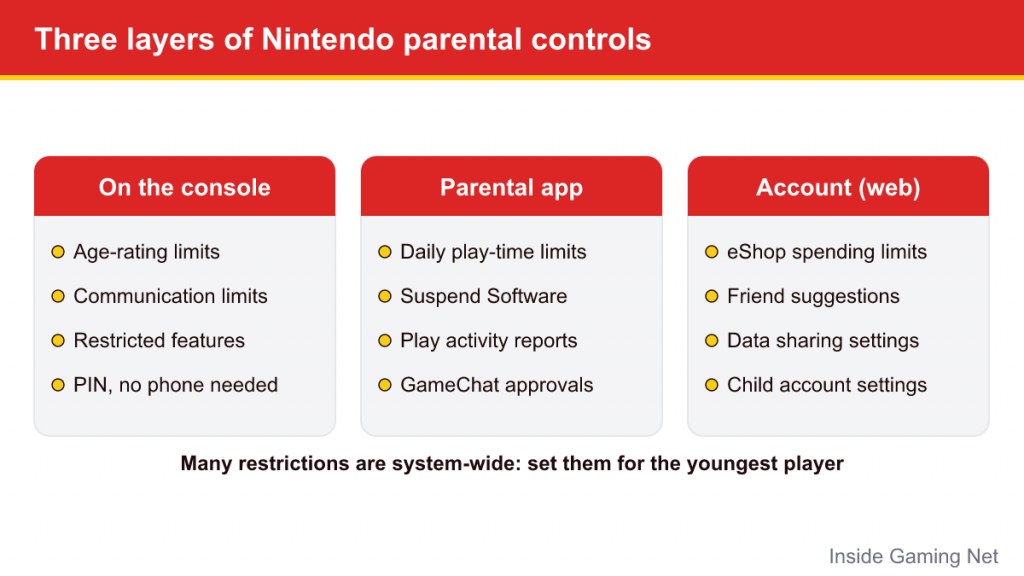
| Where | What it controls |
|---|---|
| On the console (System Settings) | Age-rating restrictions, communication restrictions, restricted features, PIN. Basic and quick, no phone required. |
| Nintendo Switch Parental Controls app | Everything above plus daily play-time limits, the Suspend Software option, play activity reports and, on Switch 2, GameChat approvals. |
| Nintendo Account settings (web) | eShop purchase restrictions, friend suggestions, sharing account information with third parties, and managing a child’s account. |
Nintendo’s own support guidance points out that many restrictions are set system-wide rather than per user. On a console shared by a teenager and a six-year-old, that means you generally need to set restrictions with the youngest player in mind, or use the app’s allow list to make exceptions for specific games.
Step 1: Create Nintendo Accounts the Right Way
The foundation is a family group. A parent or guardian aged 18 or over creates their own Nintendo Account and then adds children to a family group as child accounts. Children under the age of digital consent in your region are set up as supervised child accounts, which gives the parent control over account-level settings such as eShop purchases.
When you create your child’s account, use their real date of birth. Several protections, including the GameChat approval requirement for under-16s, depend on the age stored on the account. Setting up a child with an adult birthday quietly removes those protections.
Step 2: Set Up Controls on the Console
If you only want the basics, or you do not have a smartphone available, you can set restrictions directly on the console. On Nintendo Switch 2 the steps are:
- From the HOME Menu, open System Settings.
- Scroll to Parental Controls and select Set Up Parental Controls.
- Choose to set them up on the console rather than with the app.
- Pick a restriction level. Switch 2 offers presets for Teen, Pre-Teen and Child, or Custom Settings if you want to choose each option yourself.
- Create a PIN of 4 to 8 digits and confirm it.
The presets work by limiting which games can launch according to their age ratings and by restricting features such as communicating with other players. The PIN lets an adult temporarily lift the restrictions, for example to play a mature game after the kids are in bed. The original Switch uses a very similar menu path, and its settings carry over if you transfer data to a Switch 2.
The console method has two real limitations: it cannot set daily play-time limits, and it cannot manage GameChat on Switch 2. For those you need the app.
Step 3: Install and Link the Parental Controls App
The Nintendo Switch Parental Controls app is free on iOS and Android and works with both generations of Switch. Nintendo describes it as the option with the most features, and it is required to manage GameChat for children under 16.
- Install the app and sign in with the parent’s Nintendo Account.
- The app displays a registration code.
- On the console, go to System Settings > Parental Controls and choose to use your smart device, then enter the code shown in the app.
- Once linked, adjust settings in the app and tap Save. Changes take effect when the console next connects to the internet.
Nintendo also offers Shared Parental Controls, so two parents or guardians can each see play activity and change limits from their own phones.
Step 4: Play-Time Limits That Actually Work
Daily play-time limits are the feature most parents come for. In the app you can set a single daily limit or different limits for each day of the week, plus a bedtime alarm.
The key decision is what happens when time runs out:
- Notification only: the console displays a message that time is up, but play continues. Good for older children who are learning to self-manage, and the app still records whether they stopped.
- Suspend Software: after the warning, the console interrupts the game and goes to sleep. This is firmer, but it can interrupt a game before the child has saved, which tends to cause arguments.
A practical approach many families use is to start with notifications and an agreed rule such as “save and stop within five minutes,” moving to Suspend Software only if the rule is not followed. Whatever you choose, explain it to your child before you switch it on so the cut-off does not come as a surprise.
The app also shows which games were played and for how long, daily and in a monthly summary. That information is useful for conversations about balance rather than as a surveillance tool. For broader guidance on healthy routines, general advice from pediatric organizations is a good starting point, and if you have concerns about a child’s wellbeing, consult a professional.
Step 5: Age Ratings and the Allow List
Restricting software by age rating blocks games above a chosen rating from launching. The ratings used depend on your region: ESRB in North America, PEGI across most of Europe, and other systems elsewhere. Because the restriction is system-wide, a “Child” level that blocks Teen-rated games will block them for everyone on the console unless the PIN is entered.
The app’s allow list solves the common problem of a game that is rated above your general limit but that you are happy for your child to play. Add that specific game to the list and it will launch normally while other games at that rating stay blocked.
Step 6: Communication and Online Features
Communication settings let you restrict a child’s ability to exchange messages and images with other players, either across all games or for specific games. This is useful for titles where you are happy with online play but not with free text chat.
A few important caveats from Nintendo’s own guidance:
- These communication settings do not cover GameChat, which has its own separate controls on Switch 2.
- They do not cover voice chat through the Nintendo Switch App on a phone, which is managed through your phone’s own settings.
- On the original Switch you can block posting screenshots to social media. Switch 2 does not post directly to social media at all, so the option does not apply there.
Step 7: GameChat Controls on Switch 2
GameChat is Switch 2’s built-in voice and video chat, opened with the C button on the right Joy-Con 2. Because it lets children talk directly to other people, Nintendo built extra protections around it:
- Children under 16 need a parent or guardian’s approval in the app before they can use GameChat.
- Children can only chat with friends the parent has approved.
- Video chat requires a compatible USB-C camera. Parents can require approval for each video chat session, which sends a request notification to the parent’s phone each time, or disable video chat entirely.
- Parents can view a history of which types of chats their child joined and with whom.
- To manage any of this, the parent’s Nintendo Account must have a registered phone number.
Note that GameChat requires an active Nintendo Switch Online membership since April 2026, so a child without one cannot use it regardless of these settings. If you transfer from an original Switch, your existing parental controls move across, but GameChat settings need to be configured fresh.
Step 8: Lock Down eShop Spending
Purchase limits are not in the app or on the console. They live in the Nintendo Account settings, which you reach by signing in to your Nintendo Account on the web. From there, a parent can restrict purchases on a child’s account in the family group.
A few extra habits help:
- Require a password for purchases on every account that has a saved payment method.
- Avoid saving a credit card on a child’s profile. Prepaid eShop cards make spending visible and capped.
- Check the ratings box for “In-Game Purchases” when choosing games, since some family games sell extra items inside the game.
Common Setup Mistakes
- Setting a fake birthday on a child account, which removes age-based protections.
- Forgetting the PIN. Write it down somewhere safe; recovering it requires contacting Nintendo support.
- Assuming console settings cover the eShop. They do not; spending is managed through the Nintendo Account.
- Unlinking the app to “fix” something. Unlinking removes every restriction set through the app from that console.
- Not reviewing settings as children grow. A limit that suits a six-year-old will frustrate a twelve-year-old. Revisit the setup every year or so.
For an overview of the hardware and GameChat itself, see our Switch 2 explainer, and for what an online membership includes, read our guide to Nintendo Switch Online plans.