Nintendo Account Family Groups: Sharing Games Across a Household
How Nintendo Account family groups, child and supervised accounts work, and how Virtual Game Cards let a household share digital Switch games.
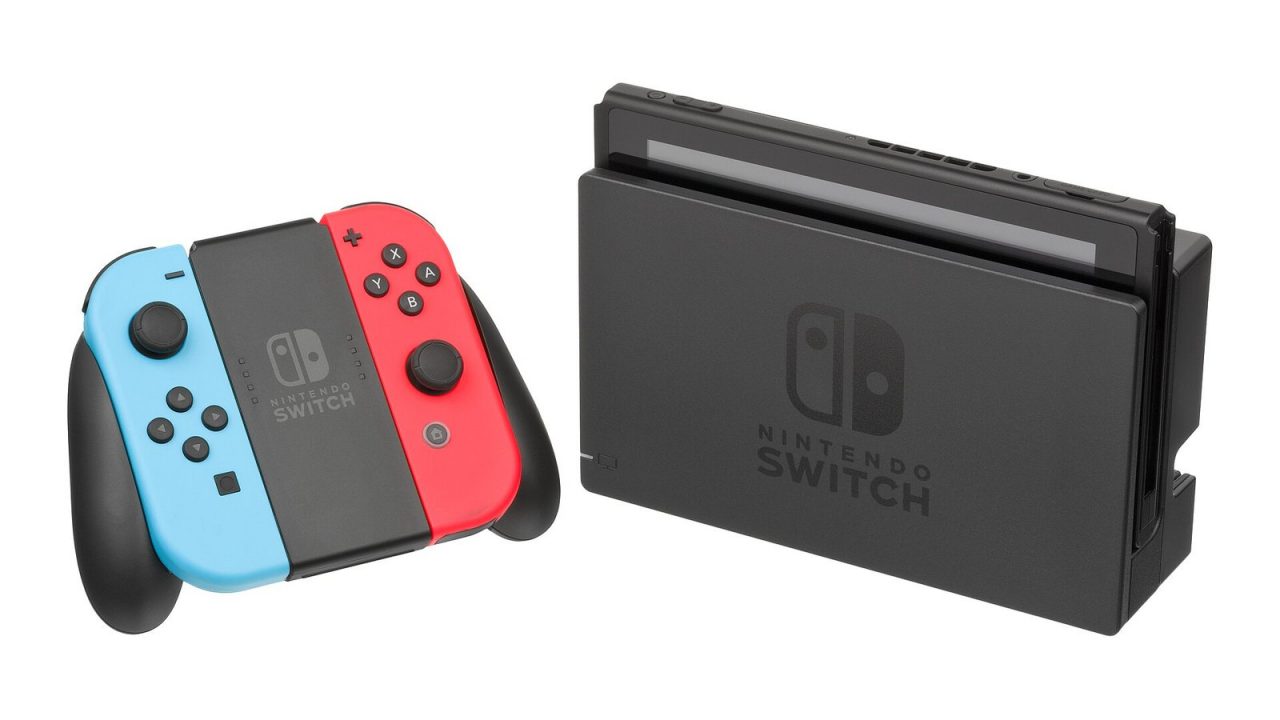
One console per household was simple. Two or three consoles, several kids and a growing digital library is where things get confusing. Can the younger child play something the older one bought? Nintendo’s answer to most of these questions runs through one feature: the Nintendo Account family group.
This guide explains how family groups are structured, what the different account roles can and cannot do, and how game sharing works now that Virtual Game Cards have replaced the old “primary console” system. Everything below reflects Nintendo’s support pages as of October 2026; Nintendo adjusts these rules from time to time, so check the official pages if something on your screen looks different.
What a Family Group Actually Is
A family group is a set of linked Nintendo Accounts managed from the Nintendo Account website (accounts.nintendo.com), not from the console itself. It applies across Nintendo Switch 2, the original Nintendo Switch, Switch Lite and Switch OLED. Linking accounts in a group unlocks three practical things:
- Shared subscriptions. A Nintendo Switch Online family membership covers the accounts in the group. The tiers themselves are covered in our Nintendo Switch Online plans guide.
- Supervision. Parents or guardians can manage eShop restrictions and account settings for children’s accounts.
- Game lending. Members can lend Virtual Game Cards (digital games) to each other’s consoles for a limited time.
Nintendo’s support pages state that a family group can hold up to eight members in total. Once a group is full, nobody new can join until someone leaves. Nintendo also limits how often accounts can join and leave within a one-year period, so constantly reshuffling members can temporarily block you from adding new ones, including new child accounts. Plan your group once rather than experimenting.
Family Group Roles, Explained
Every account in a group has a role, and an account can hold more than one. Nintendo’s roles breakdown looks like this:
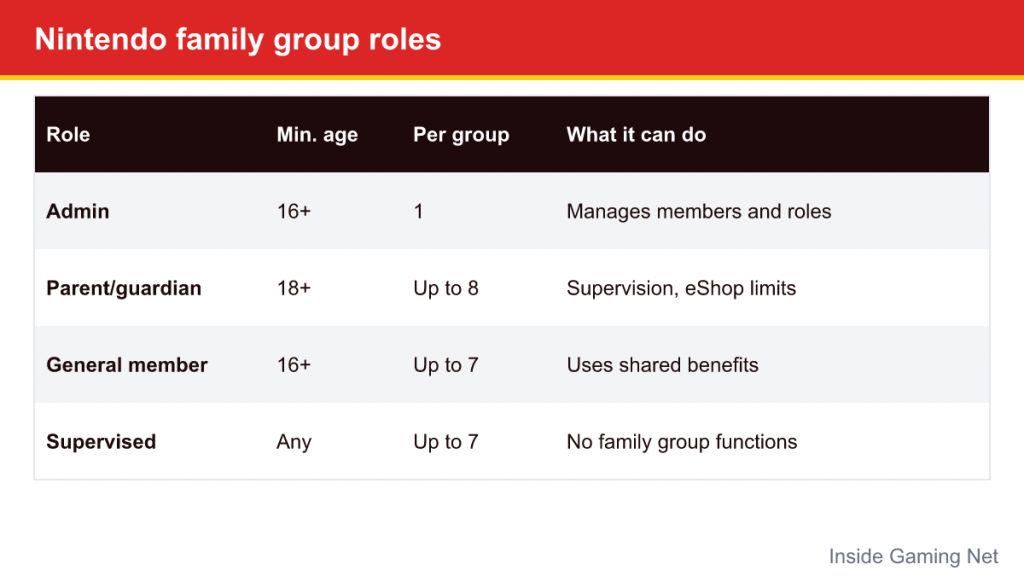
| Role | Minimum age | How many per group | What it can do |
|---|---|---|---|
| Admin | 16+ | 1 | Adds and removes members, assigns roles, transfers the admin role, adjusts account settings for members aged 15 and under |
| Parent/guardian | 18+ | Up to 8 | Assigns the supervised role, manages eShop restrictions for supervised accounts |
| General member | 16+ | Up to 7 | Can use shared benefits and leave the group |
| Supervised | Any | Up to 7 | Uses normal account features such as the eShop and My Nintendo, but cannot perform family group functions |
Two details trip people up. First, while the admin only needs to be 16, only an admin aged 18 or older can add or remove children under 16. If a teenager created the group, the admin role has to be transferred to an adult before a younger child’s account can be added; it can be transferred back afterward. Second, an admin who is 18 or older automatically counts as a parent/guardian too.
The supervised role is assigned automatically to accounts for children aged 15 and under. A parent/guardian can also mark another account as supervised, in which case Nintendo sends an “About Parental Controls” email that the account holder has to accept before supervision takes effect.
Setting Up a Family Group and Child Accounts
Everything starts on the Nintendo Account website, signed in as the adult who will be the admin.
- Sign in at the Nintendo Account site and open Family group.
- If you are on your own, choose to create a family group; if a group exists, choose to add a member.
- To add someone who already has a Nintendo Account, enter the email address registered to that account. They receive an invitation email, select the verification link, sign in and choose Join family group. The admin then assigns their role.
- To add a child who has no account yet, choose to create a child account. You enter the child’s birthdate and your password, and then complete parental consent where your region requires it.
- Fill in the child’s details (nickname, Sign-In ID, password), accept the agreements and submit. Give the child their Sign-In ID and password, or keep them yourself if they are young.
On parental consent: in the United States and some other regions, the law requires verifiable parental consent before a young child’s account can be created. Nintendo’s Americas support page describes this as a small one-time credit card charge or an emailed consent link, depending on region. Accounts created this way use a Sign-In ID instead of requiring the child to have an email address, which is convenient for younger kids.
Once a child’s Nintendo Account exists, link it to a user profile on the console the child plays. That link is what makes their purchases, save backups and borrowed games follow them around.
Family groups vs parental controls
It is easy to assume the family group handles all of the parenting tools. It does not. The family group mainly controls account-level things, such as eShop spending restrictions for supervised accounts. Play-time limits, age-rating restrictions and communication settings are configured per console, ideally through the Nintendo Switch Parental Controls smartphone app. Our parental controls setup guide walks through that side. On Switch 2, GameChat for children is also tied to parental approval through the Parental Controls app, so the two systems work together rather than replacing each other.
How Game Sharing Works Now: Virtual Game Cards
Until spring 2025, digital game sharing on Switch depended on the “primary console” model: your purchases worked offline for anyone on your primary console, and only for you (online) on any other console. The Switch system update 20.0.0, released in late April 2025 ahead of Switch 2’s launch, introduced Virtual Game Cards, and Nintendo’s update history notes that the “Primary Console” terminology was retired as part of that change.
The idea is to make digital games behave more like physical cartridges. Each digital game you own appears as a virtual card in the Virtual Game Cards menu on the HOME Menu. The core rules, per Nintendo’s official Virtual Game Cards page:
- Up to two systems can be linked per Nintendo Account. Linking requires local wireless and an internet connection the first time.
- A virtual card can be played on one linked system at a time. To move it, eject it from one console and load it onto the other.
- Once a game is loaded on a console, other user accounts on that console can play it too, and it can be played offline.
- An internet connection is needed the first time a loaded game starts, and each time a card is ejected.
- Nintendo Switch 2 exclusives and Switch 2 Edition games can only be loaded on a Switch 2.
- Virtual Game Cards may not be available for demos and some Nintendo Switch Online member-exclusive games.
If you buy physical games instead, none of this applies: a cartridge works on whatever console it is inserted into. Switch 2 also has Game-Key Cards, which sit somewhere in between; the formats are compared in our Game-Key Cards explainer.
Lending Games to Family Group Members
Linking two consoles to your own account covers your household’s main systems. Lending covers everyone else in the family group: a sibling with their own Switch, a teen with a Switch Lite, or a grandparent’s console if they are in the group.
The rules, as Nintendo states them as of October 2026:
- You can lend one game per account, for up to 14 days. The borrower can return it earlier, and the lender can retrieve it.
- Lending requires a local wireless connection between the two consoles at the moment of lending, and both consoles must be online.
- The borrower must have a Nintendo Account in the family group linked to a user on the receiving console.
- During the loan the borrower can play the game, including DLC the owner purchased. The lender cannot play it until it comes back.
- When the loan ends, the game returns automatically. The borrower keeps their save data, so they can pick up where they left off if they borrow it again or buy their own copy.
- Games available only through a Nintendo Switch Online membership cannot be lent.
Step by step: lending a game
On the lending console:
- From the HOME Menu, select Virtual Game Cards.
- Select the user linked to your Nintendo Account and enter your PIN or password if asked.
- Choose the game, then Lend to Family Group Member.
- Select Select a User to Lend To, pick the family member, and confirm with Lend.
On the borrowing console, at the same time and nearby:
- Open Virtual Game Cards from the HOME Menu.
- Select the user who will borrow the game and enter their PIN or password if prompted.
- Select Borrow.
If a borrowed game stops mid-session with a message that the lending period is over, Nintendo’s support page for that error simply advises asking the owner to lend it again. Remember that a Switch 2 Edition or Switch 2 exclusive cannot be sent to an original Switch, because those cards only load on Switch 2.
Playing on More Than Two Consoles: Online License
Two linked consoles is the limit for Virtual Game Cards, but some households have three or more systems. For that case, Nintendo offers an Online License setting. With it switched on, you can play your purchased digital games and DLC on any console where your Nintendo Account is linked and the game is downloaded, as long as that console is online and passes a quick license check at startup.
You can enable it from your user icon on the HOME Menu under Online License Settings, or from the settings icon inside Virtual Game Cards. The setting applies to your account on all your consoles. The important limitation: one Nintendo Account cannot play on multiple consoles at the same time. If you try, play on one system is suspended.
Practical Setups for Common Households
Because the rules are per account and per console, the best arrangement depends on who buys games and who plays them.
One parent buys, kids share one console
Buy games on the parent’s account, link the kids’ console as one of the parent’s two systems, and load games onto it. Each child gets their own user profile (linked to their own supervised child account) for separate save data and parental controls. Nobody needs to lend anything.
Siblings with separate consoles
Here lending becomes useful. Purchases on one child’s account can be lent to the other for two weeks at a time, one game per account. An alternative is for the parent’s account to hold the library and keep each child’s console as one of its two linked systems, ejecting and loading as needed. That works well for two consoles; with three, lending or physical cartridges fill the gap.
Mixed Switch and Switch 2 homes
Original Switch games can be lent or loaded onto either console type. Switch 2 games and Switch 2 Editions stay on Switch 2 hardware. GameShare, a separate Switch 2 feature, lets a Switch 2 share certain games for local play sessions with nearby consoles, which is a different mechanism from lending a full copy.
Whatever the setup, pick an adult as admin from the start, avoid adding and removing members casually, and remember that if a child moves to another household’s group, the admin can transfer a supervised account to a different family group rather than deleting it.